Starfield Gameplay Options for UI
This information is also on GitHub
This is a ActionScript 3 helper script that I wrote for UI (interface) mods to easily interact with the Gameplay Options configuration system in Starfield (and potentially future BGS games).
While developing Ammo HUD v4.0, I figured out how to not only read Gameplay Options but make it reliable and easy for any UI mod.
Since there are a good amount of UI mods that I feel would greatly benefit from this, I wrote a drop-in framework script which makes it basically trivial to implement into any existing or future UI mod.
Table of Contents
Download
You can download it at either of the following:
License and Attribution
I chose a custom attribution license which basically just states you can use this in any project for any reason but you need to include attribution somewhere in your mod description (can just be my name in your credits list). I am pretty flexible on this to be honest, so if you feel strongly that you dont want to do that, please reach out to me and we can work it out.
Required Bethesda Scripts
Since this relies on the framework BGS puts into menus that already access engine events, the following scripts MUST be included in your UI file if they are not already:
- EnumHelper.as (Shared.EnumHelper)
- CustomEvent.as (Shared.AS3.Events.CustomEvent)
- BSUIDataManager.as (Shared.AS3.Data.BSUIDataManager)
- BSUIEventDispatcherBackend.as (Shared.AS3.Data.BSUIEventDispatcherBackend)
- FromClientDataEvent.as (Shared.AS3.Data.FromClientDataEvent)
- TestProviderLoader.as (Shared.AS3.Data.TestProviderLoader)
- UIDataFromClient.as (Shared.AS3.Data.UIDataFromClient)
- UIDataShuttleConnector.as (Shared.AS3.Data.UIDataShuttleConnector)
- UIDataShuttleTestConnector.as (Shared.AS3.Data.UIDataShuttleTestConnector)
- UsesEventDispatcherBackend.as (Shared.AS3.Data.UsesEventDispatcherBackend)
Methodology
Basically this helper script allows you to initialize an array of data objects which stores Gameplay Options for your mod.
It uses pattern matching to determine which options to load and keeps them updated when the user changes them.
This also works when your menu is not always there (favorites, dataslate, book, etc.), meaning the PEOData engine event will provide all the gameplay options both on initial load and on update, I just made it easier to implement and access specific settings.
Matching Options
You can use either the Name or the Description field to match against.
The matching is done via Regular Expressions, so you can either pass your own complex Regex pattern or just provide the string you want to match and it will automatically get escaped for the pattern.
There are three match types that you can use:
| Type | Description |
|---|---|
| Name | Matches a pattern in the Name of the gameplay option |
| Description | Matches a pattern in the Description of the gameplay option |
| Group | Matches a pattern in the Group Name of the gameplay option group |
These are passed to the Initialize() method via an integer parameter.
The allowed values are stored in an enum (which is why EnumHelper is required).
| Type | Enum | Int Value |
|---|---|---|
| Name | PxGameplayOptions.Match_Name | 0 |
| Description | PxGameplayOptions.Match_Description | 1 |
| Group | PxGameplayOptions.Match_Group | 2 |
Name Matching
By default it will use the Name field for matching and it will replace the pattern for the sName property in the data object.
This means if your option name is My Mod: Some Option and you pass My Mod: as the pattern, then it will make the name of that option Some Option.
It will trim spaces both sides of the remaining string so there arent any extra spaces.
Description Matching
If you pass PxGameplayOptions.Match_Description then it will match the pattern in the description instead.
This will not do any trimming or anything, it will take the option name as is.
This allows you to "hide" the pattern in the description which makes the name look better in the menu.
Personally this is a better method than using the name, but Group is the best provided you are using a group.
Group Matching
If you pass PxGameplayOptions.Match_Group then it will match the pattern in the your GPO group instead.
IMPORTANT: If you are using this, you MUST create the gameplay option group in your mod, if you dont then it will never match anything and always return null.
Unfortunately gameplay option groups just show up as another gameplay option in the array of objects, BGS didnt make the group a property of the gameplay option objects which means the only way to parse the list at all is to iterate over the array.
Since groups always preceeed the options in that group in the array, it basically matches the group and adds each option after that to the data object until it reaches the next group that doesnt match the pattern.
This means you can use multiple groups, but each one would need to match the pattern you provide.
This means you dont have to prefix the names or hide a pattern in your description, which is the cleanest method.
Callback Function
You have the option to implement a callback function so when the PEOData event updates, it will fire your callback function.
This allows you to do something on that data update if you want to, basically allows you to dynamically change something when the data changes.
Data Cache and Access
Each matched option is loaded into an easily queried object, it will only keep one instance of each setting but will update its value when the engine event updates.
This means that the values will always be queryable, even outside of the events.
Data Access Methods
I have included some easy data acecss methods that you can call to get any value for any option.
| Function | Description |
|---|---|
| GetSettingObject | Gets individual data object that matches the passed name string. |
| GetSettingValueString | Gets the string value property from the individual data object that matches the passed name string. |
| GetSettingValueUInt | Gets the raw uint value property from the individual data object that matches the passed name string. |
| GetSettingValueInt | Gets the int value property from the individual data object that matches the passed name string. |
| GetSettingValueNumber | Gets the number (float) value property from the individual data object that matches the passed name string. |
| GetSettingValueBool | Gets the bool value property from the individual data object that matches the passed name string. |
Other Data Access
There are a couple built in get properties and overrides
| Property/Function | Description |
|---|---|
| .data | Public access to the full data object array. |
| .isLoaded | Boolean status of the data object having been loaded with matched gameplay options |
| .toString() | Returns the whole loaded object as a string (easy for debugging) |
Initializing
I tried to make it very easy so all you have to do is add a new PxGameplayOptions object and then call .Initialize() wherever you need to.
I normally do this either in the constructor or the ADDED_TO_STAGE event.
Parameters
There are a few parameters, only one of them is required, the rest are optional.
| Parameter | Default | Description |
|---|---|---|
| sPattern (*) | Null | This is the pattern to look for in the PEO settings. Must not be null. |
| fCallBack | Null | Function to call on PEO data update. Ignored when null. |
| iMatchType | Match_Name (0) | Which match type to use: Match_Name (0), Match_Description (1), Match_Group (2) |
| bIsRegexPattern | False | Treat the pattern as a regex pattern already, do not escape it for regex. |
(*) = Required
Adding to your project
This section will use data from the 'Demo Mod' so its easy to follow
- Download the script: Source/PxGameplayOptions.as
- Add
PXC.PxGameplayOptionsto your projects scripts
Create the object
You will want to create a new object as a property in your class.
Initialize the object
This will subscribe to the PEOData engine event and cache a data array of matching options.
pxGameplayOptions.Initialize("PXC GPOUI Demo", onPeoDataChange, PxGameplayOptions.Match_Description);
This example is initializing it with PXC GPOUI Demo as the pattern, onPeoDataChange is an existing function for call back, PxGameplayOptions.Match_Description to use description matching.
Callback
Here is an example of a callback function usage.
This is just validating that the object is not null and has loadedd data, then setting a variable to the string format of the loaded data object.
In the demo mod this is just prepending this data to the body text of the dataslate.
private function onPeoDataChange() : *
{
    if(pxGameplayOptions == null || !pxGameplayOptions.isLoaded)
        return;

    sInjectedItems = pxGameplayOptions.toString();
}
Demo Mods
I created a few demo mods with two Gameplay Options (one of each type) and I added my script to the dataslatemenu.swf interface file and edited the DataSlateMenu.as script to allow me to show a basic example of how to access the data in an easy visual way.
These are pretty self-explanatory but here is a table explaining them with links to each folder:
| Demo Mod | Description |
|---|---|
| Name Matching | Uses the name prefix method |
| Description Matching | Uses the description pattern method |
| Group Matching | Uses the group matching method |
Script Example
Here is a condenced version of what it looks like in the demo mods DataSlateMenu class. The class is very large so this is just the parts I added to it to show off the helper script.
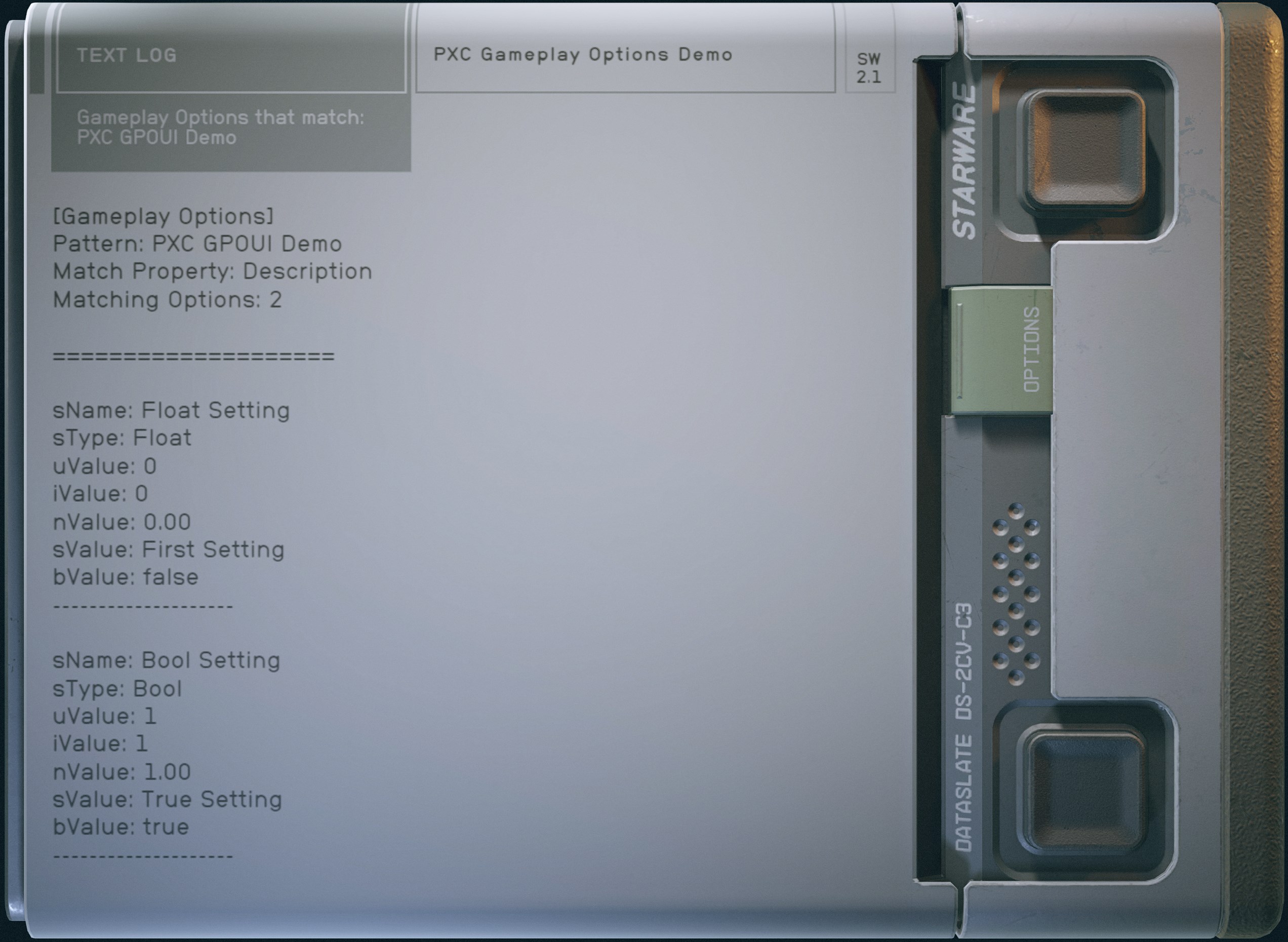
This basically just injects the PEO options string value into the dataslate named PXC Gameplay Options Demo so you can see the data easily.
You will need to give yourself this dataslate if you are testing with this demo mod, just use the console command help pxc 4 book to find its ID.
package DataSlateMenu
{
   import PXC.PxGameplayOptions;
   //.....

   public class DataSlateMenu extends IMenu
   {
      //.....
      private var sInjectedItems:String = "";
      private var pxGameplayOptions:PxGameplayOptions = new PxGameplayOptions();

      public function DataSlateMenu()
      {
         super();
         pxGameplayOptions.Initialize("PXC GPOUI Demo", onPeoDataChange, PxGameplayOptions.Match_Description);
         //.....
      }

      private function onPeoDataChange() : *
      {
         if(pxGameplayOptions == null || !pxGameplayOptions.isLoaded)
            return;

         sInjectedItems = pxGameplayOptions.toString();
      }
      //.....

      private function onDataUpdate(param1:FromClientDataEvent) : void
      {
         //.....
         if(!this.IsDataPopulated && param1.data.uType != TYPE_NONE)
         {
            //.....
            var sBody:String = param1.data.sBodyText;
            if(param1.data.sTitle == "PXC Gameplay Options Demo")
            {
               sBody = sInjectedItems + "\r\n" + param1.data.sBodyText;
            }
            _loc2_ = false;
            _loc3_ = this.GetNextToken(sBody.split("\r").join(" "));
            //.....
         }
      }
      //.....

   }
}
Gameplay Options
Here are the two Gameplay Options in the demo mod.
| Name | Type | Information |
|---|---|---|
| Float Setting | Float | Uses float (numerical) values for its settings |
| Bool Setting | Bool | Uses boolean (true/false) values for its settings |

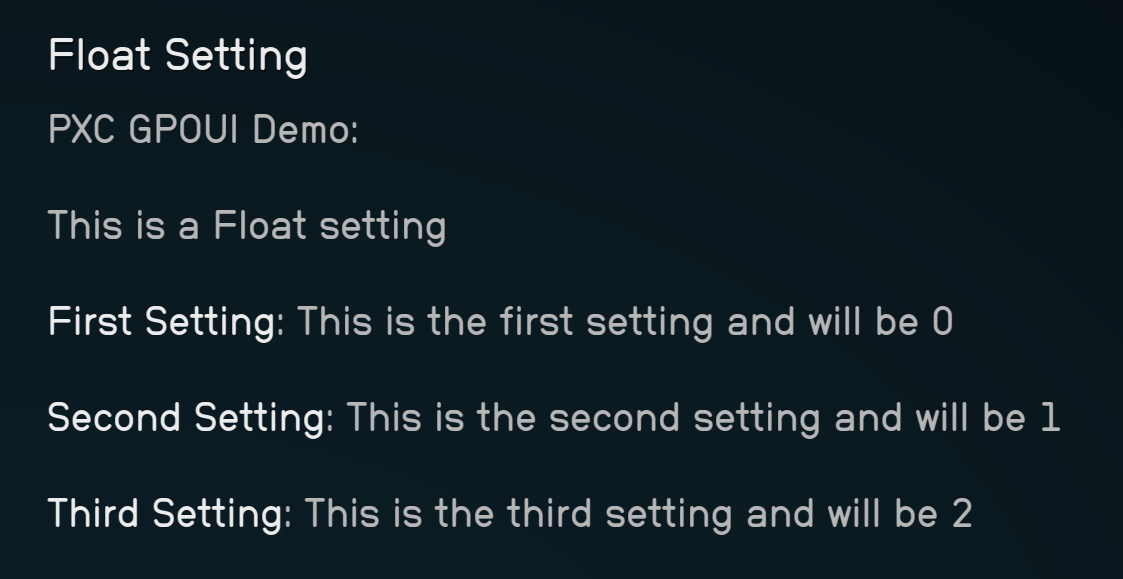
Using name prefixes instead
This is just a screenshot of the demo mod gameplay options but using the Name matching instead. I'm including this just so you can see what it would look like in the Gameplay Options screen and why I think Description matching is better.

Group Matching
I am not going to provide an image for this, it looks the exact same as the above images just with out the need for a name prefix or a pattern in the description.
Dataslate Menu
Here is a screenshot of the PXC Gameplay Options Demo dataslate from in game to show the data properly being read.
If using name prefixes or group matching it would look the same basically, so I'm just including the description matching screenshot
Another Example
Here is just another class example that is implementing the helper and accessing the data a bit differently.
Its basically just accessing the data on load and update to set the visibility of a movie clip and the value of a textfield.
It is setup to use Name matching so in this example the GPO names in the mod would be prefixed with MyCoolMod:
This is very barebones and just provided as an additional example
package
{
    import PXC.PxGameOptions;

    public dynamic class MyCoolMenu extends MovieClip
    {
        private static const sGpoPattern:String = "MyCoolMod:";
        private var sSomeDisplayString:String = "Option 1";
        private var bShowElement:Boolean = true;
        private var pxGameplayOptions:PxGameplayOptions = new PxGameplayOptions();

        public function MyCoolMenu()
        {
            super();
            addEventListener(Event.ADDED_TO_STAGE, this.onAddedToStageEvent);
        }

        private function onAddedToStageEvent(param1:Event) : void
        {
            removeEventListener(Event.ADDED_TO_STAGE, this.onAddedToStageEvent);
            pxGameplayOptions.Initialize(sGpoPattern, onPeoDataChange);
        }

        private function onPeoDataChange() : *
        {
            if(pxGameplayOptions == null || !pxGameplayOptions.isLoaded)
                return;

            sSomeDisplayString = pxGameplayOptions.GetSettingValueString("Some Display Option");
            bShowElement = pxGameplayOptions.GetSettingValueBool("Element Shown");
            this.SetThings();
        }

        private function SetThings() : void
        {
            SomeMoveClip.visible = bShowElement;
            switch(sSomeDisplayString)
            {
                case "Option 1":
                    SomeTextField.text = "This is what to show for option 1";
                    break;
                case "Option 2":
                    SomeTextField.text = "This is what to show for option 2";
                    break;
                case "Option 3":
                    SomeTextField.text = "This is what to show for option 3";
            }
        }
    }
}