Starfield Weapon Icon File Builder
Table of Contents
You can click any image to enlarge it
About
Custom built multi-platform GUI application which aids Starfield mod authors in creating custom weapon icon SWF files for their mods. It automates the entire process so you do not need to manually use JPEXS FFDec anymore.
This tool exists because I was able to add code and automation inside the Custom Weapon Icon Template which auto scales and positions your weapon icon. The latest version of that template is bundled with this application, as well as a specific version of FFDec which properly imports SVG files and updates their bounds.
All you have to do is download the latest release and unpack it somewhere on your computer and then run it, fill out your weapons details, load a SVG icon and click generate. You will now have a specialized "CCSUP_" SWF file that is ready to be dropped into your BA2 archive.
You will still need to setup your UI_Icon keywords in your mod for it to work correctly
Download
You can find the latest release on GitHub

Required Dependencies
- Java 8 or newer
- FFDec v26.0.0 or newer (this is included in the download)
- .NET 9.0 (this is embedded with the application)
Introduction to the tool
This section will outline the user interface and the basic features
Interface elements
The tool has 3 pages (outlined below) which provide two automated usages for weapon icons and then a settings page.
Each element on each page has a round question mark on the right, if you hover over these it will give more information for that specific element.
If you encounter any problems then it will tell you that it had a problem, with some details on that problem and how to contact me.
It will also log all actions its doing in your users local temp directory under a folder named "Starfield Weapon Icon File Builder", the alert that tells you a problem occured will show the exact path to the log file.
Create New Page
This page lets you create a new weapon icon file
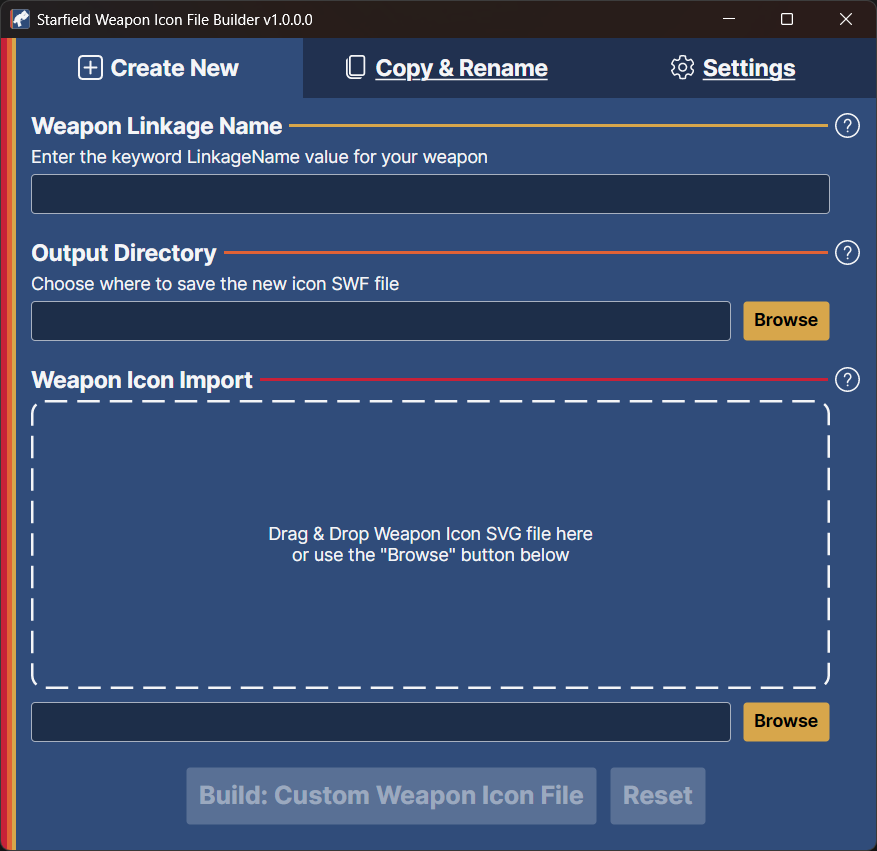
Create New Page
Fields
| Field | Description |
|---|---|
| Weapon Linkage Name | This is the Linkage Name field from your UI_Icon keyword |
| Output Directory | This is where you would like the new file to be saved at |
| Weapon Icon Import | This is your SVG icon to use for the file |
Copy & Rename Page
This page lets you clone an existing weapon icon file but with a new linkage name. This is useful if your weapon has mulitple ammunition options and you want me to be able to support it natively in Ammo HUD.
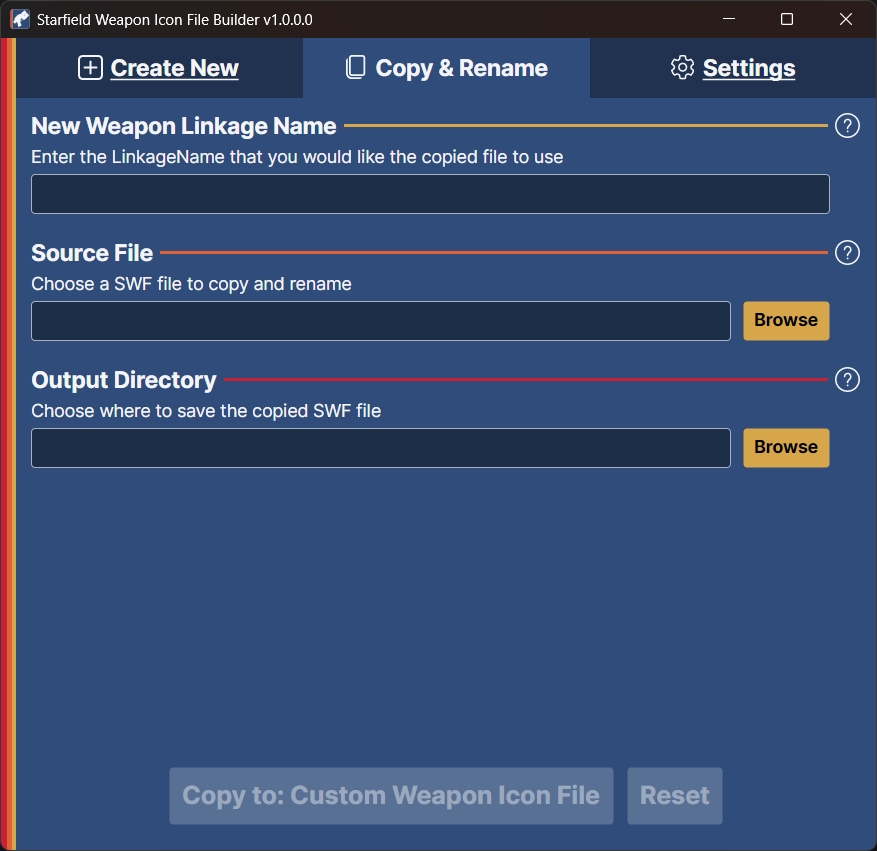
Copy & Rename Page
Fields
| Field | Description |
|---|---|
| New Weapon Linkage Name | This is the Linkage Name field from your UI_Icon keyword that you want to rename the file to |
| Source File | This is the source file that you want to clone |
| Output Directory | This is where you would like the new file to be saved at |
Settings Page
These settings are saved in StarfieldWeaponIconFileBuilder.settings.json next to the exe.
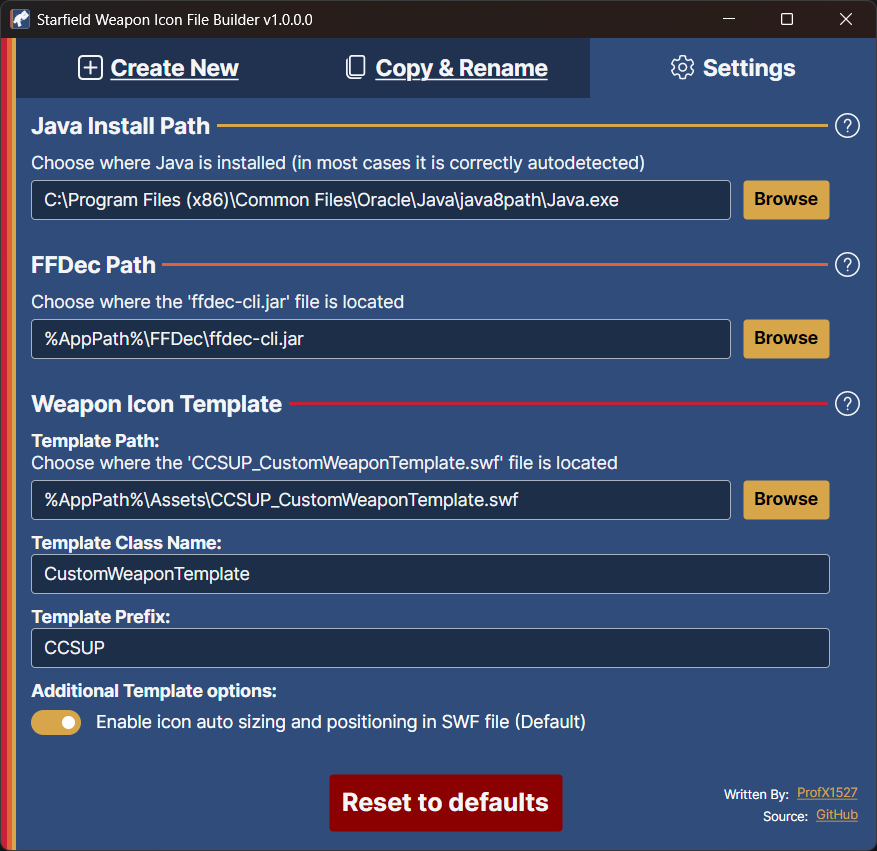
Settings Page
Java Install Path
This is where the Java.exe is located on your system
The tool will attempt to automatically locate this on run
FFDec Path
This is where the ffdec-cli.jar file is located
This is bundled with the application and will exist in a folder named FFDec in the same directory as the application exe
Weapon Icon Template
This section is for customizing the usage of the Custom Weapon Icon Template
Template Path
This is the path to where the CCSUP_CustomWeaponTemplate.swf file is located
This is bundled with the application and will exist in a folder named Assets in the same directory as the application exe
Template Class Name
This is the name of the class inside the template
You should not need to change this
Template Prefix
This is the prefix value to pre-pend to the file. The tool is smart enough to detect if your linkage names have the correct prefix or not, if not then it will automatically pre-pend it.
You should not need to change this
Additional Template Options
This section currently only has one option, it may be expanded in the future
Icon auto sizing and positioning
This option controls if you want to disable the auto sizing and positioning in the Custom Weapon Icon Template v2.0.0 file.
Its strongly suggested to keep this enabled.
Creating a new Weapon Icon File
In this section you will be shown how to create a new Weapon Icon File
Prerequisites
- You will need to have a SVG icon file already made for your weapon. You can follow steps out lined Here if you dont already have one.
- You will need to have downloaded the application and unpacked it somewhere on your system.
Using the application to create your icon file
Launch "Starfield Weapon Icon File Builder.exe" as a regular user
Launching as administrator will break the drag & drop feature for your SVG file, so its best to not do that
Enter your weapons linkage name
This is your Linkage Name value from your UI_Icon keyword
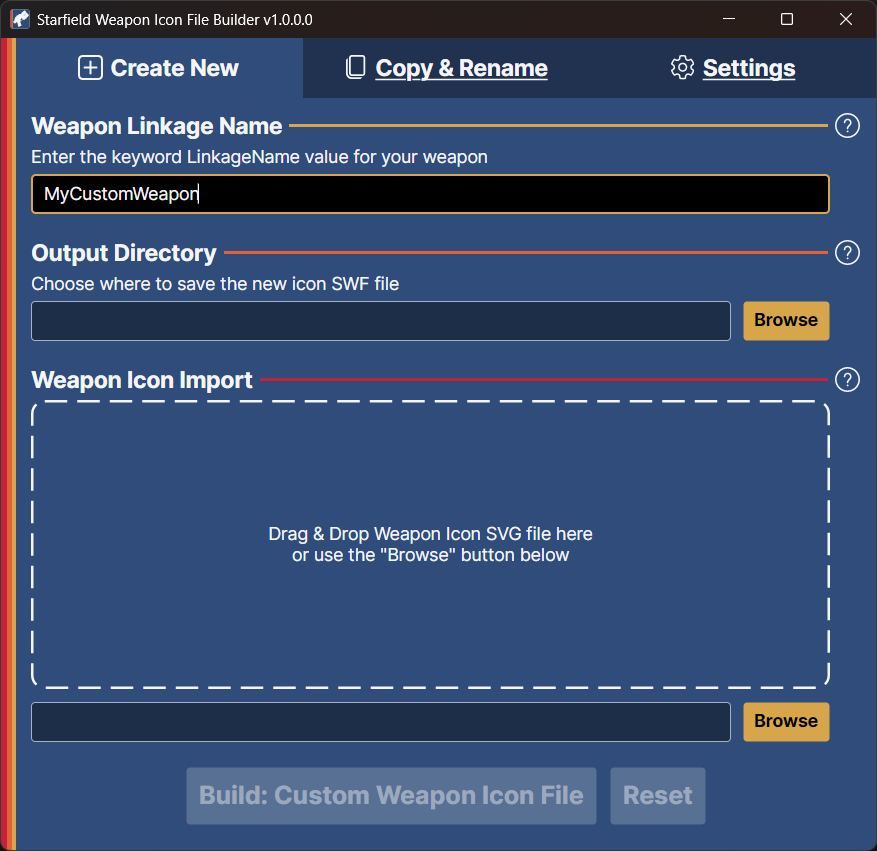
Enter your weapons linkage name
Choose your output directory
Choose where you would like the new file saved at
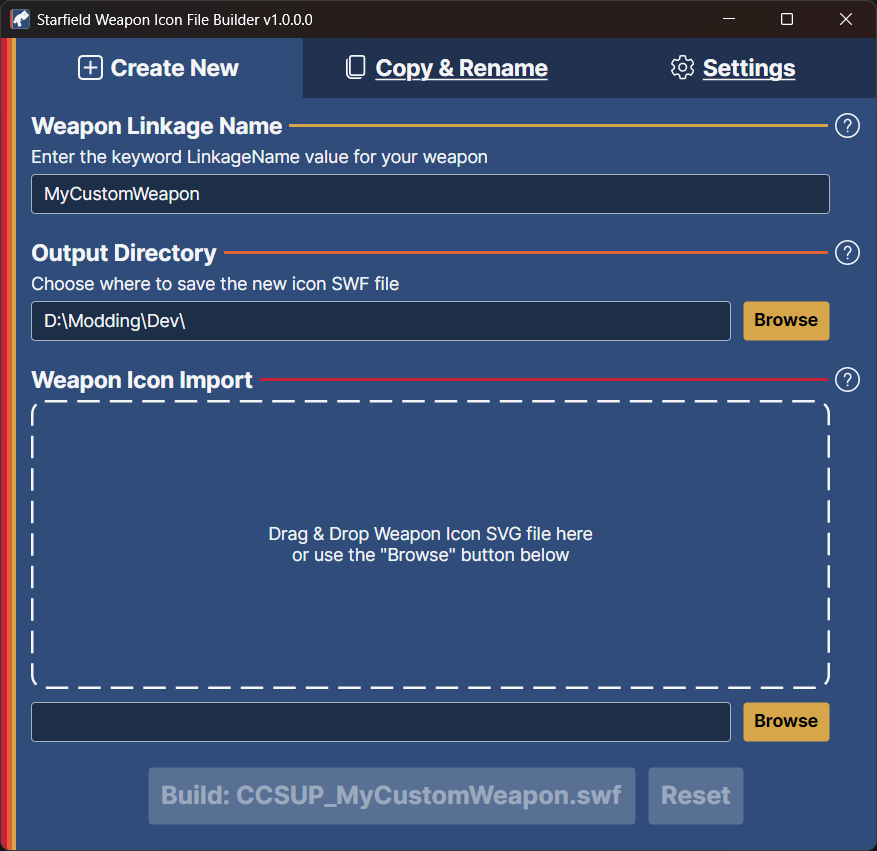
Choose your output directory
Add your SVG
This will load your SVG into the icon template automatically
You can either drag and drop your SVG file, or use the browse button
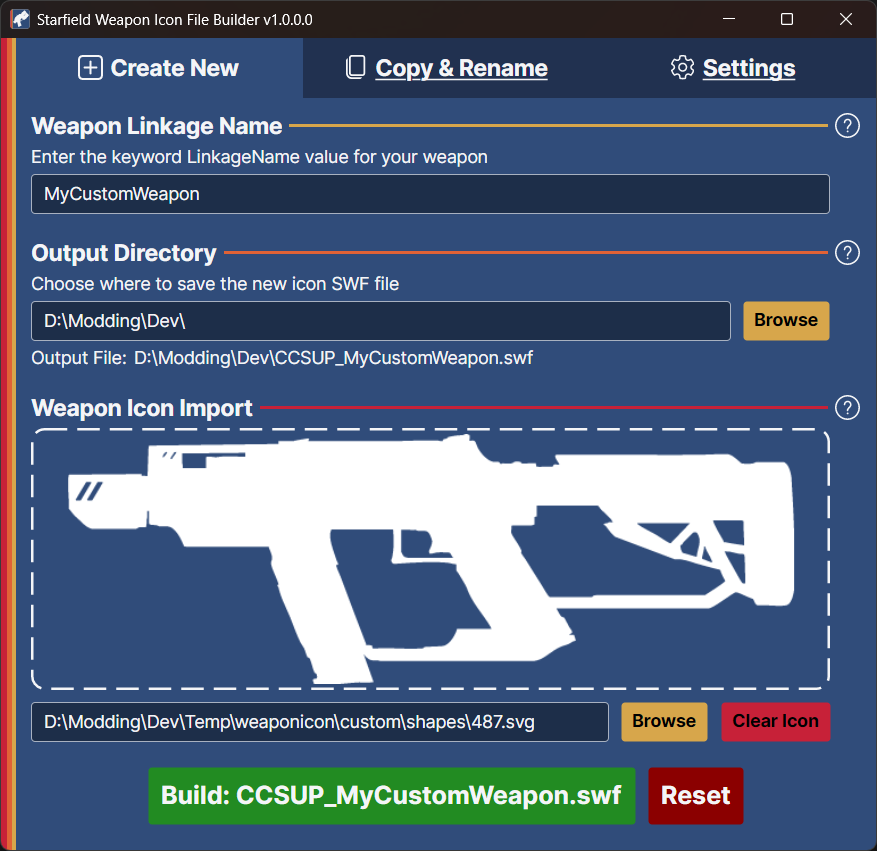
Add your SVG
Build your icon file
Once you click the green button it will start doing its work
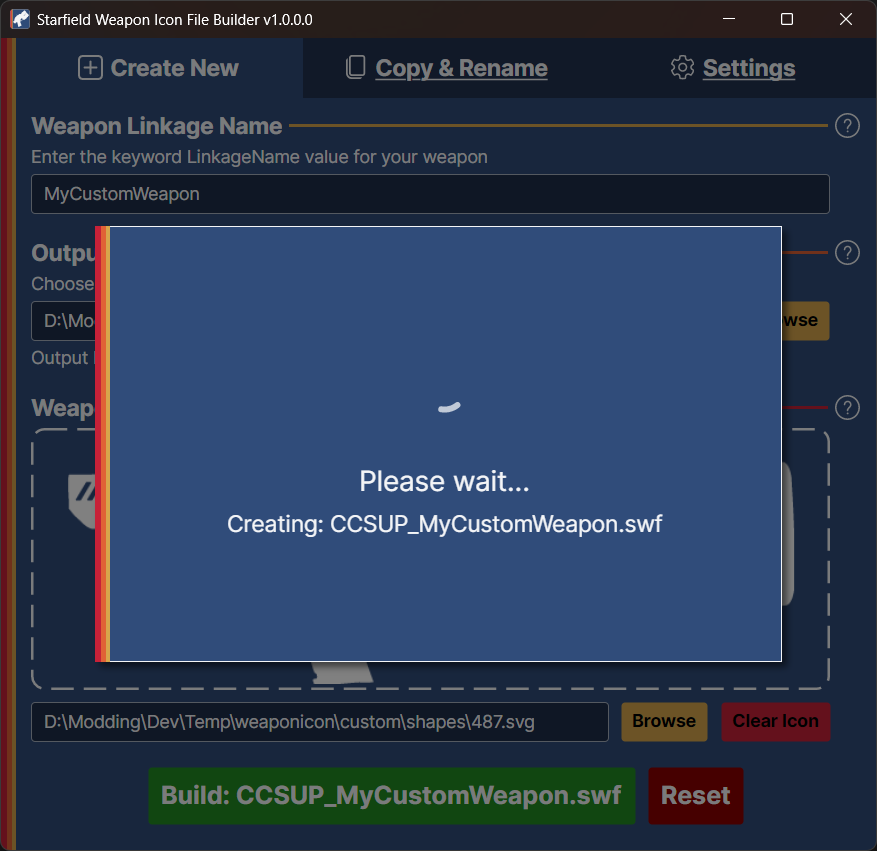
Build your icon file
Finished
Once the work has completed you will be asked if you want to clear the form to do another
If you are making multiple files with the same icon, its best to create one and then use the Copy & Rename page to make copies
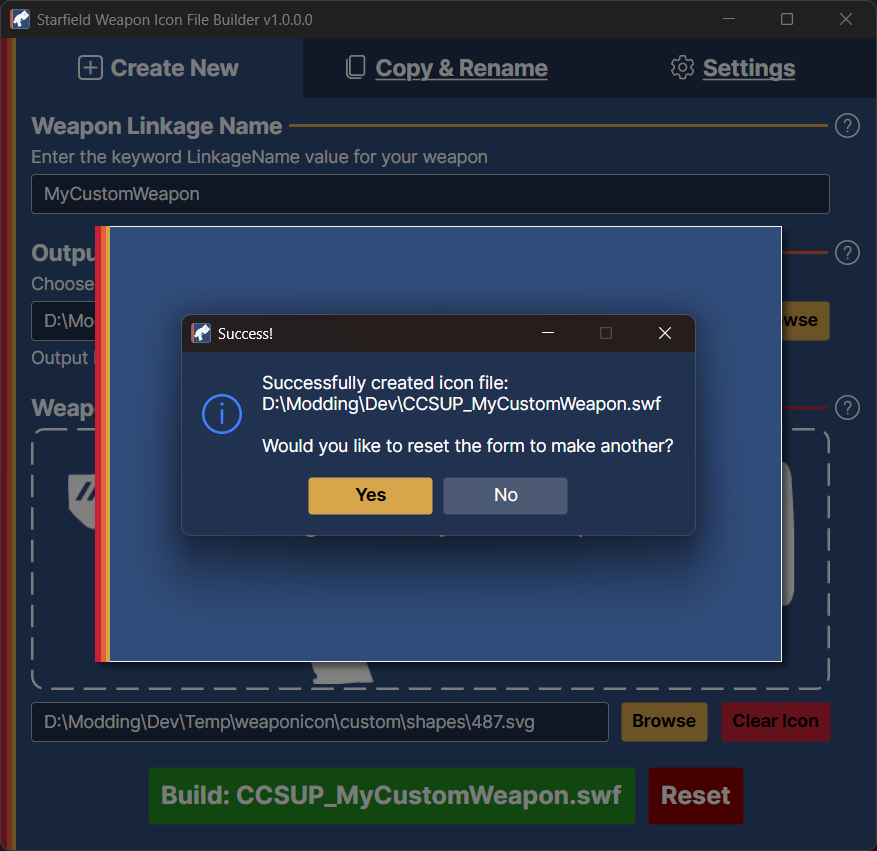
Finished creating icon file
Now you can follow the instructions Here to add the new file to your archive
Copying and Renaming an existing Weapon Icon File
Launch "Starfield Weapon Icon File Builder.exe" as a regular user
Enter your new weapons linkage name
This is your Linkage Name value from your UI_Icon keyword that you want to rename the selected file to
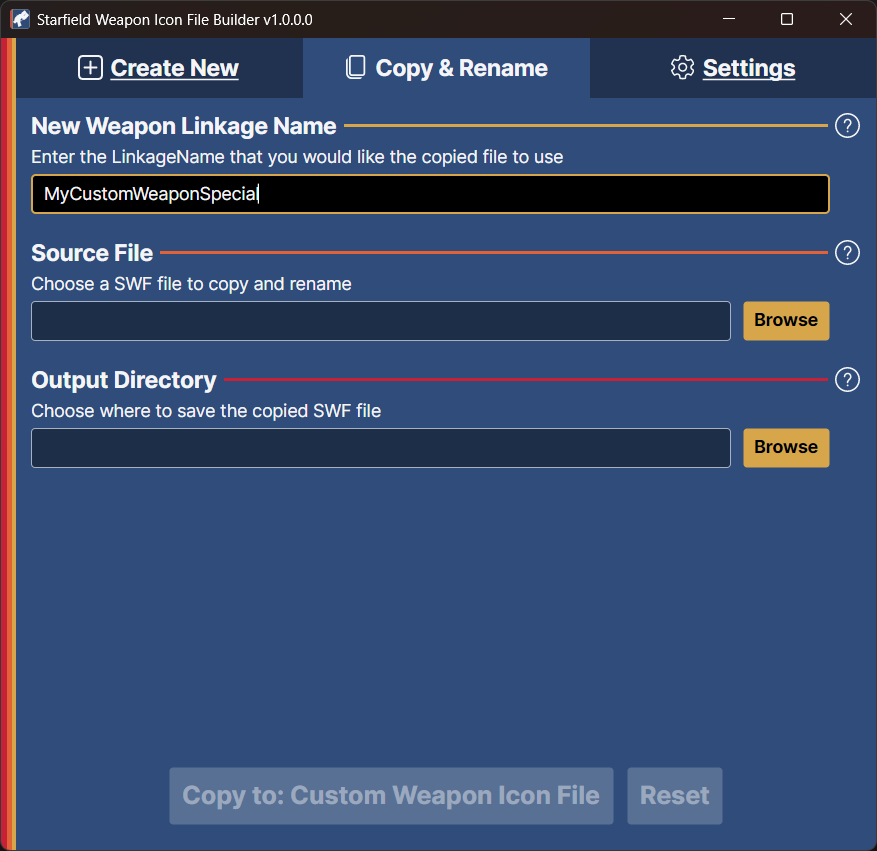
Enter your new weapons linkage name
Choose your source file
Choose the SWF file that you would like to copy
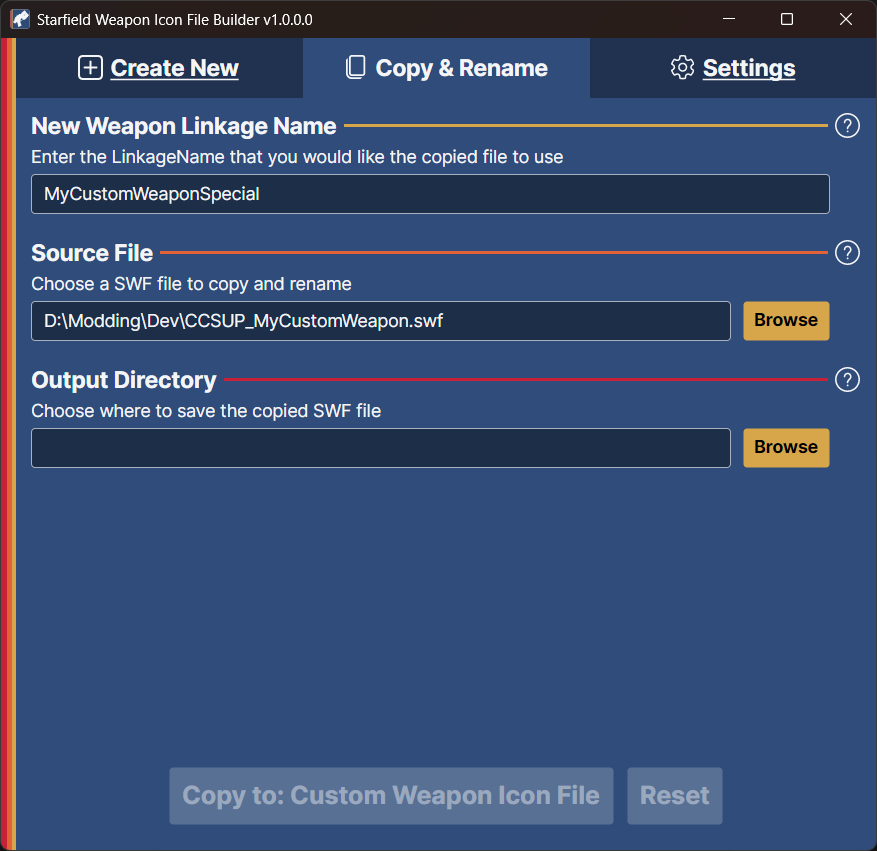
Choose your source file
Choose your output directory
Choose where you would like the new file saved at
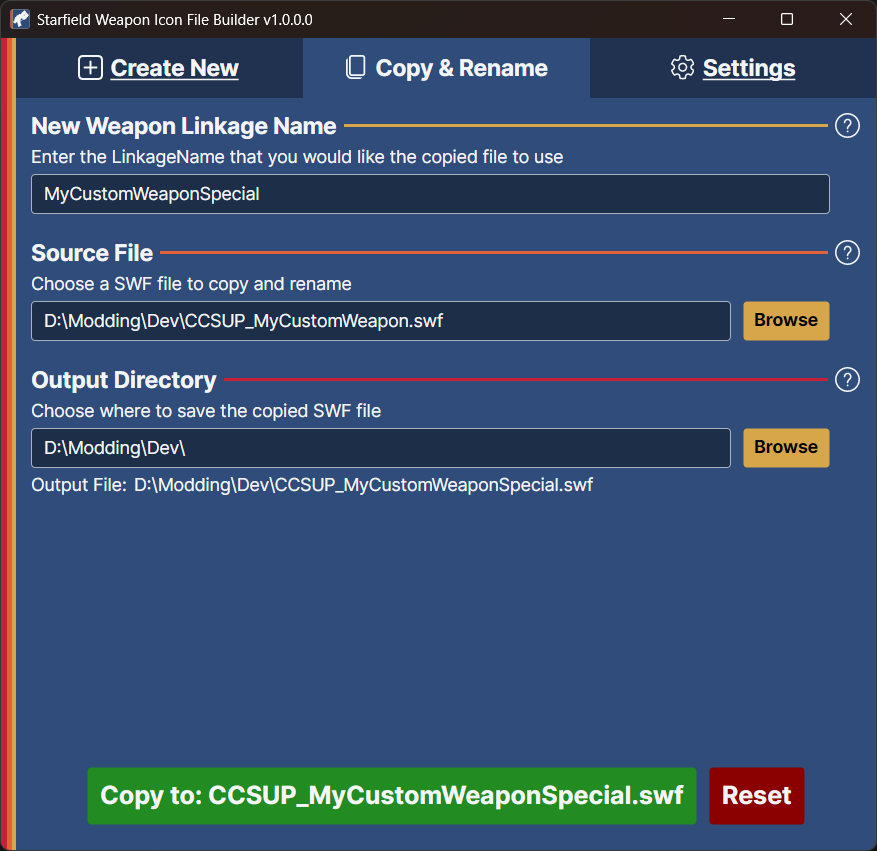
Choose your output directory
Copy your icon file
Once you click the green button it will start doing its work
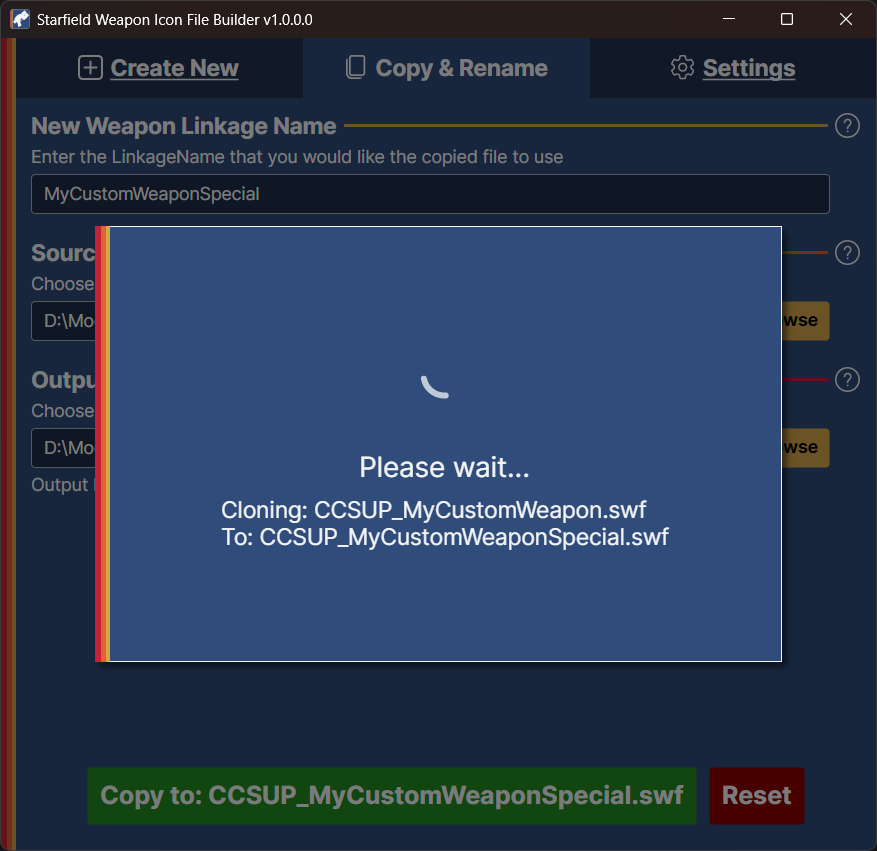
Copy your icon file
Finished
Once the work has completed you will be asked if you want to clear the form to do another
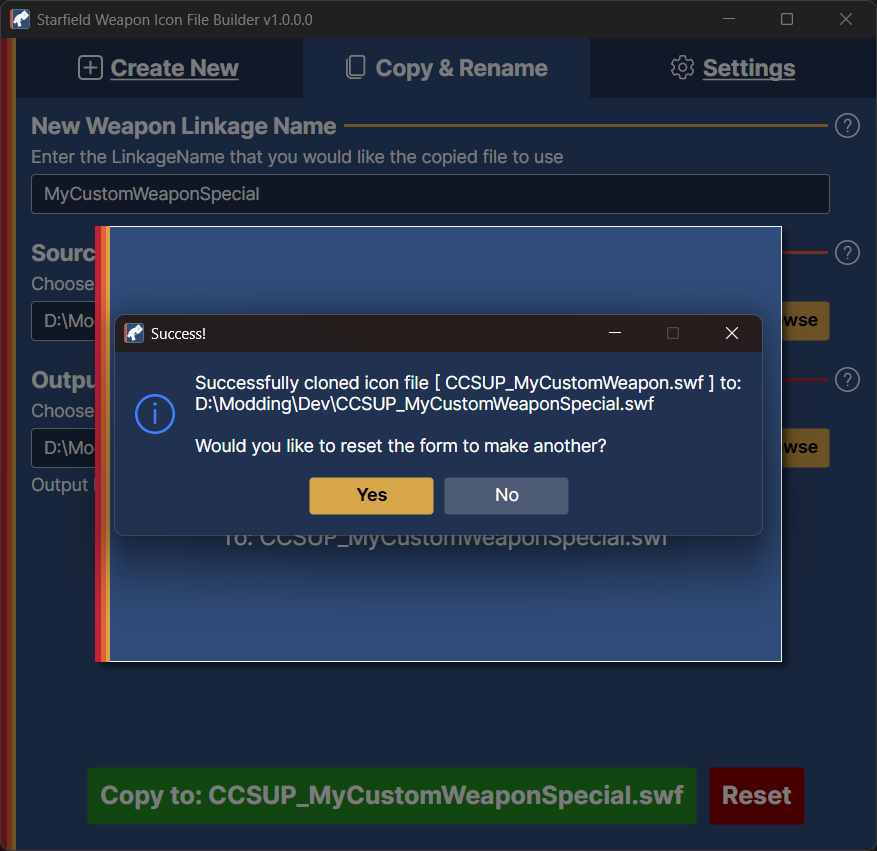
Finished cloning icon file
Now you can follow the instructions Here to add the new file to your archive